
Attendance Module NUI
Bitfocus Resource Links:
Managing Attendance Services in the Attendance Module
Shelter Types
Entry/Exit (E/E) Shelters
- Enrollments are created coinciding with an entire shelter stay
- The Enrollment Start Date should be the same as the first day shelter was provided
- The Enrollment Exit Date should be the same as the date client left shelter
- Use of the Attendance Module is optional and can be determined by agency needs
Night-by-Night (NbN) Shelters
- Enrollments are created to ‘bookend’ periods of shelter use
- Any significant gaps of use require Exiting a client from their Enrollment
- The Enrollment Exit Date should coincide with the morning they left shelter which will be the day after their last attendance record
Use of the Attendance Module is required - This is how individual NbN shelter nights are documented
NbN Shelter Workflow
Client Check-In and Enrollment
- All clients require a Program Enrollment with a Start Date that aligns with the day of the first day of use
- Once an Enrollment is created NbN shelters should then record an ‘Attendance’ for the day they arrive (i.e. the start of the night, not the morning after)
- Please see below for further discussion on use of the Attendance Module
Program Exit
- At NbN shelters, clients should be Exited for the day following their final service
- Update known exit information, most importantly the Exit Destination
- Follow the CoC’s guidelines for the designated period of inactivity that necessitates program exit in situations where exit intentions were not shared with program staff
- The Potential Exits canned report useful for determining who should be exited
Using the Attendance Module
-
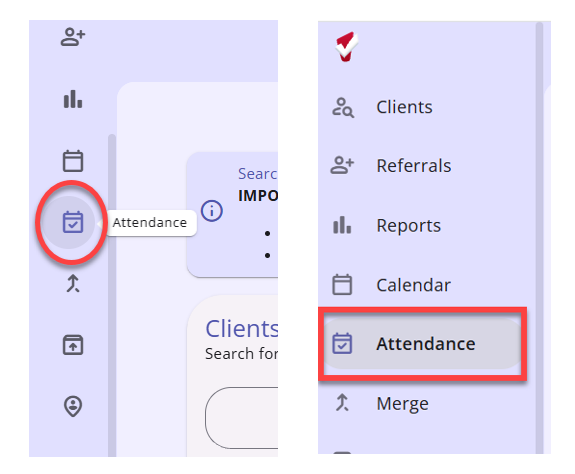
Navigate to the Attendance Module by clicking the icon in the left menu panel
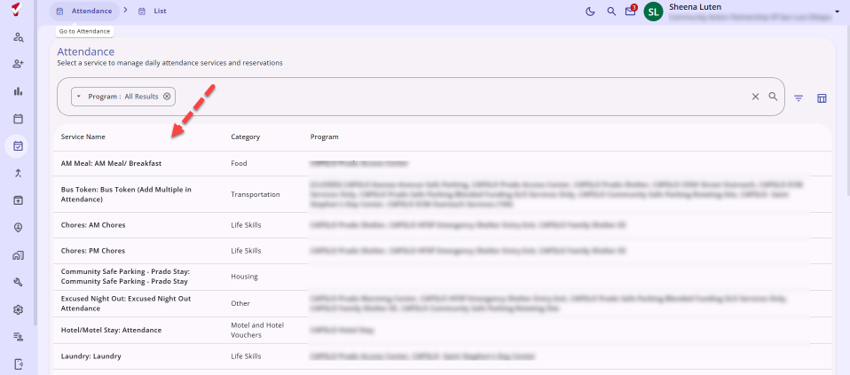
- Click the Service to open the Attendance Module
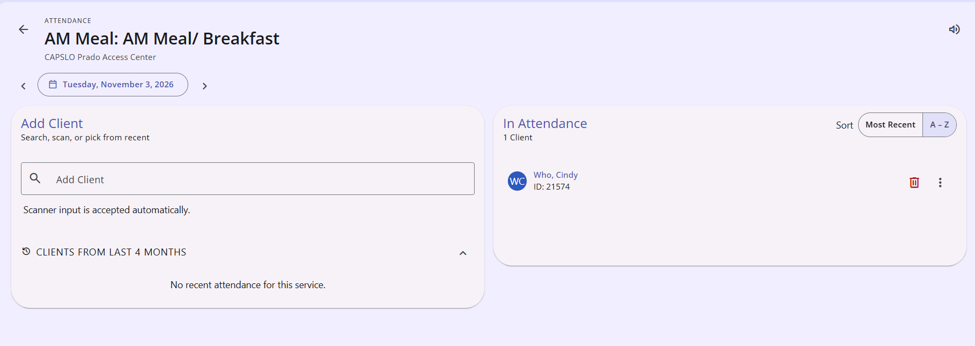
- The In Attendance column on the left can be used to view who is already checked in. Changing the dates allows for viewing, or entering, historical records
- If a client has a Public Alert in effect, including for example a shelter ban, an alert icon will appear at the top right corner

Manual Entry Mode
- Clients with a ‘recent’ stay will appear in the bottom of the page and can be checked-in by clicking ‘Add’
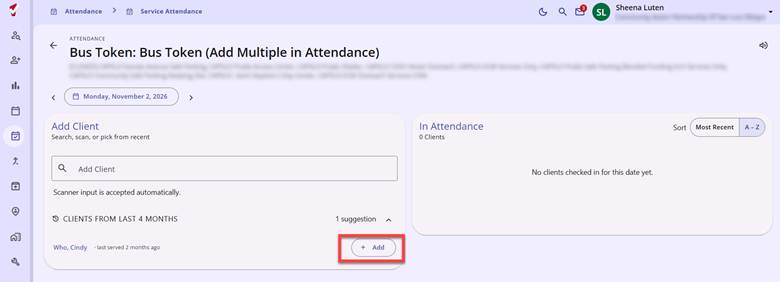
- For back data entry it is possible to change the date for which the services will be entered
- Names will only appear on the recently served list if the services occurred in the past. Therefore, if doing entry for multiple days it is best to start with the oldest date first
Client Search
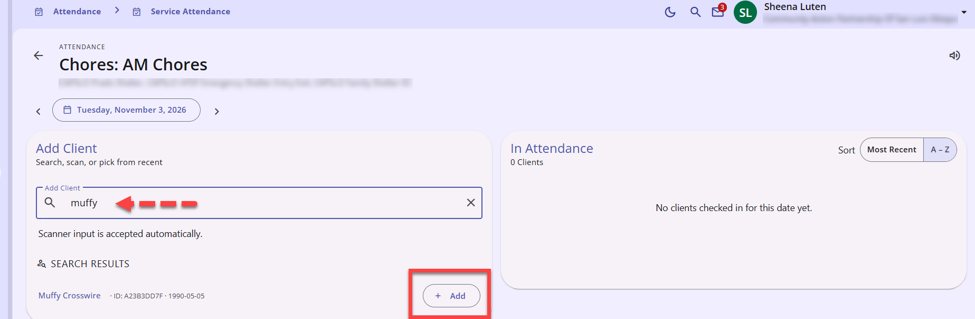
- For new clients, or those who have not visited within the designated interval, it is necessary to use the Client Search feature
- Search by the client name or Clarity ID. If they have an active Enrollment, clicking ‘Add’ will enter an Attendance record
- NOTE: This allows you to expand and see the entire household, and check-in the entire household without scrolling through the client list