
Add File- Add Multiple Files to Client Record NUI
Bitfocus Resource Link: Working with Files in the Client Record
- Begin by navigating to the area called Files within the client record or the client's enrollment.
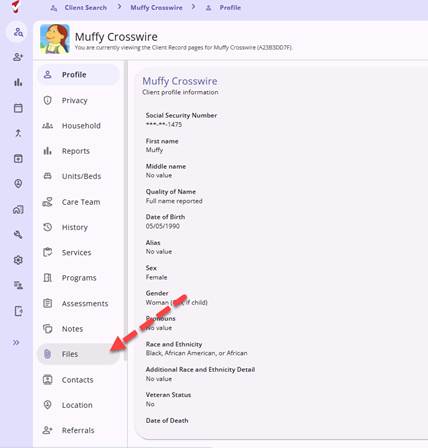

Add a New File
- Click on Add File to initiate the upload process.
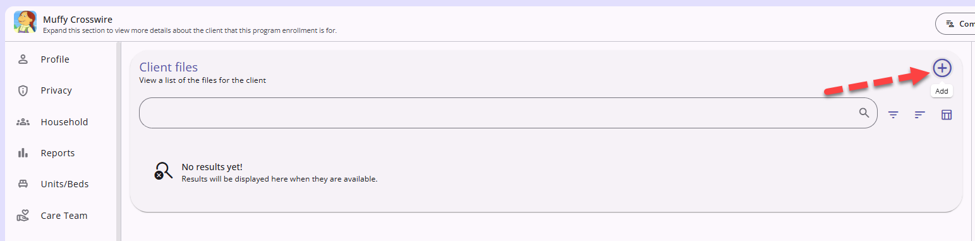
'Adding a File'
Step 3: Select File Category and Predefined Name
- Choose the appropriate Category and Name for the file you are uploading.
Step 4: Choose a File from Your Computer
- Click Choose A File to open your file explorer, where you can select the file you want to upload.
Step 5: Save the File
- Click Save to save the file to the client record or enrollment.
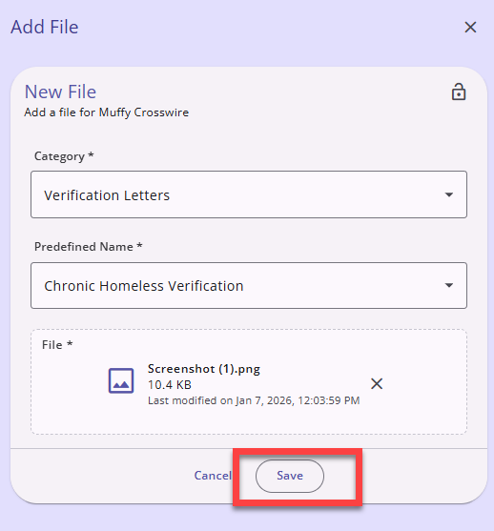
'Upload a File' Screen
Step 6: IMPORTANT - Uploading Additional Files
- If there is a file with additional pages, it is best to upload as a compressed file
- You can upload as many files as you need, for multiple documentation/file types
Step 7: Repeat
- Repeat Steps 2-6 for each subsequent file you need to upload.